How to Create an Expense Report Template in Google Sheets

An expense report is a small document with an outsized ability to slow things down. One missing receipt, and the whole reimbursement stalls.
Google Sheets makes the report itself easy: list the expenses, total them, submit. The friction is almost never the math. It’s the receipts.
This guide builds an expense report template that totals itself, and shows you how to attach every receipt to the exact line it belongs to, so approval doesn’t get stuck.
Key Highlights
- An expense report in Google Sheets is a short header plus a line-item table that totals automatically.
- Each line needs a date, description, category, and amount, with SUM giving the reimbursement total.
- Category dropdowns keep reports consistent across a team.
- The number-one cause of delayed reimbursements is a missing receipt, not a bad total.
- UpSheet is a Google Sheets extension by The Conductor that lets you attach the receipt directly to each expense line, so an approver sees the proof without asking for it.
What goes into an expense report template?
An expense report has two parts: a header identifying who and when, and a table of expenses.
Open a new Google Sheet. At the top, add a small header block:
- Employee name
- Department
- Period (the dates covered)
- Report date
Then, below it, create the line-item table with these columns:
- Date (A)
- Description (B)
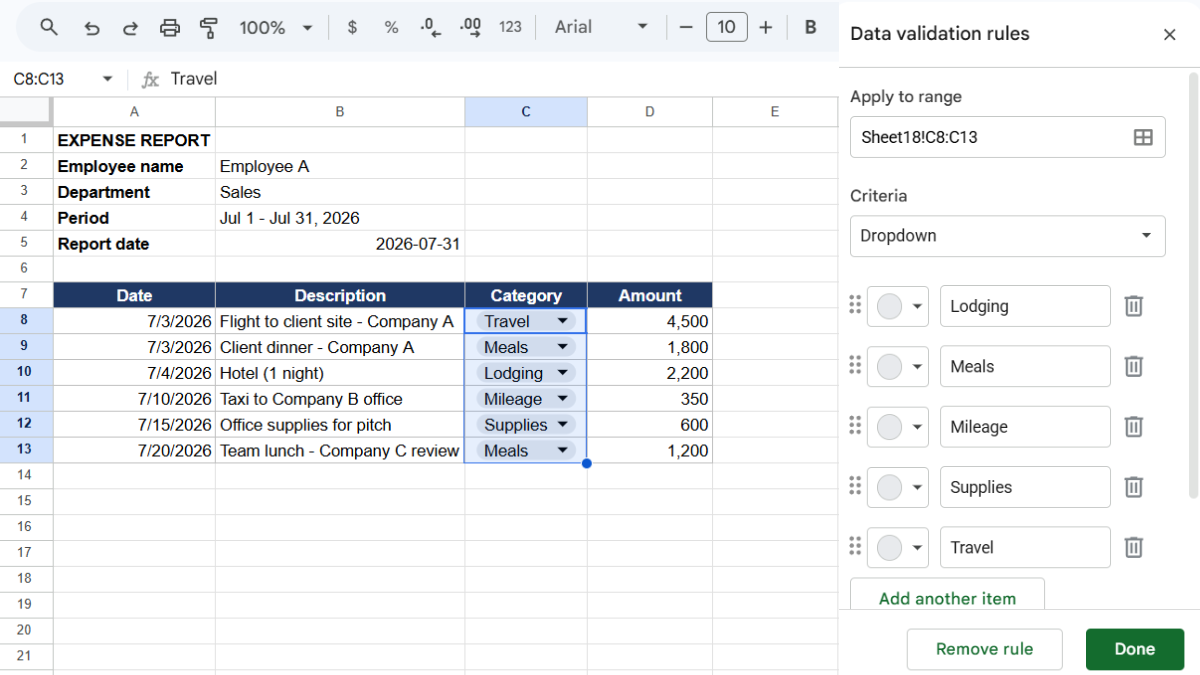
- Category (C)
- Amount (D)
Make Category a dropdown (Data → Data validation → Dropdown) with categories like Travel, Meals, Lodging, Supplies, and Mileage, so everyone reports the same way.
How do you total the report automatically?
Below the line items, add a total. In a cell under column D:
=SUM(D2:D20)
That’s your reimbursement total, and it updates as lines are added or edited.
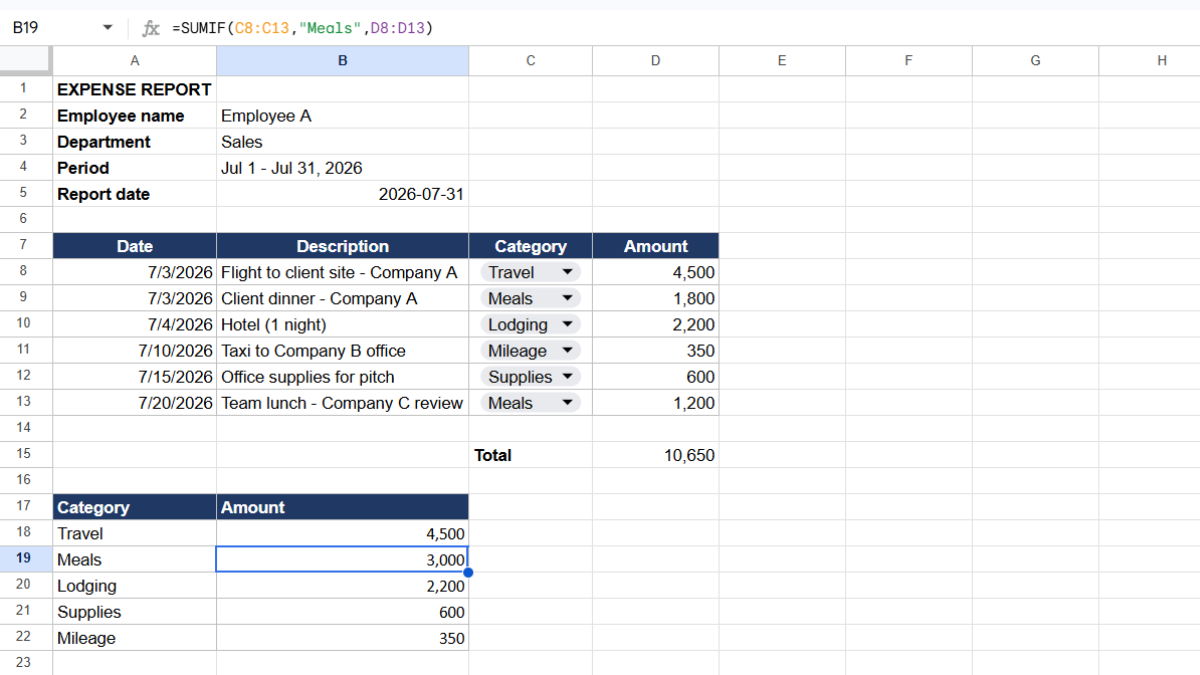
If your company reimburses categories differently (say, meals are capped), you can break the total down with SUMIF:
=SUMIF(C:C, "Meals", D:D)
How do you make it reusable?
To turn this into a template you reuse each month:
- Keep the header labels but clear the values.
- Leave the formulas in place.
- Go to File → Make a copy whenever you start a new report, or duplicate the tab.
That way the structure and math survive, and you only fill in the new month’s expenses.
Where do the receipts go?
Here’s the part that actually decides whether a report gets approved on time. Almost every expense line needs a receipt, and traditionally that means stapling scans to an email, or pasting a wall of Drive links that break when files move.
The approver opens the report, sees the amounts, and then has to go hunting for the matching receipts. Anything missing bounces back to you, and the cycle repeats. The report was never the bottleneck. The receipts were.
This is where UpSheet fits in. UpSheet is a Google Sheets extension, built by The Conductor, that lets you drag and drop files straight onto a cell. You attach each receipt directly to its expense line.
Drop the receipt on the row, and UpSheet stores it in a dedicated Google Drive folder for that sheet and marks the cell with a 📎 paperclip. Your approver clicks the line and sees the receipt right there, no separate email, no broken links.
Because everyone with sheet access can attach, a manager reviewing the report sees exactly which line each receipt belongs to. In TABLE mode, each receipt stays tied to its line even if rows get reordered. Drag, Drop, Done.
Frequently asked questions
How do I make an expense report in Google Sheets?
Add a header with employee, department, and period, then a line-item table of date, description, category, and amount. Total it with SUM, and use a category dropdown so reports stay consistent.
Is there a free expense report template for Google Sheets?
You can build a free, reusable expense report in minutes with a header block, a line-item table, and a SUM total, then duplicate it each month. Add UpSheet to attach receipts to each line for faster approval.
How do I attach receipts to an expense report?
Use UpSheet. Drag each receipt onto its expense line, and it saves to the sheet’s Drive folder with a paperclip marker, so approvers see the proof on the line itself instead of chasing separate attachments.
How do I total expenses by category in a report?
Use SUMIF, such as =SUMIF(category column, "Meals", amount column), to total a single category. This is useful when a company reimburses some categories differently from others.
Organize Your Work, Simplify Your Life
The report is the easy part. The receipts are what hold up reimbursement. UpSheet attaches each receipt to its line, so an approver has everything they need at a glance.
Start your 14-day free trial. It works inside the Google Sheet you already use, so there’s nothing new to learn. Pro is $9.99/month (or $79.99/year) when you’re ready.