How to Build a Weekly Planner in Google Sheets

The best planner is the one you’ll actually open. For a lot of people, that’s a spreadsheet they already live in all day, not another app with notifications to ignore.
Google Sheets makes a clean, flexible weekly planner: your priorities up top, a day-by-day layout below, and checkboxes to feel the satisfaction of ticking things off.
This guide builds a weekly plan template Google Sheets makes easy to reuse from scratch, then shows you how to keep the reference files for each plan item attached right where you plan.
Key Highlights
- A weekly planner in Google Sheets pairs a top-priorities block with a day-by-day table.
- Checkboxes (Insert → Checkbox) make ticking off tasks quick and satisfying.
- Conditional formatting dims completed items so your focus stays on what’s left.
- Building it as a reusable tab means every week starts from the same clean slate.
- Plans often point to files: an agenda, a doc to review, notes for a meeting. UpSheet is a Google Sheets extension by The Conductor that lets you attach those reference files to each plan item, so everything you need is on the row.
How do you lay out a weekly plan template Google Sheets can reuse?
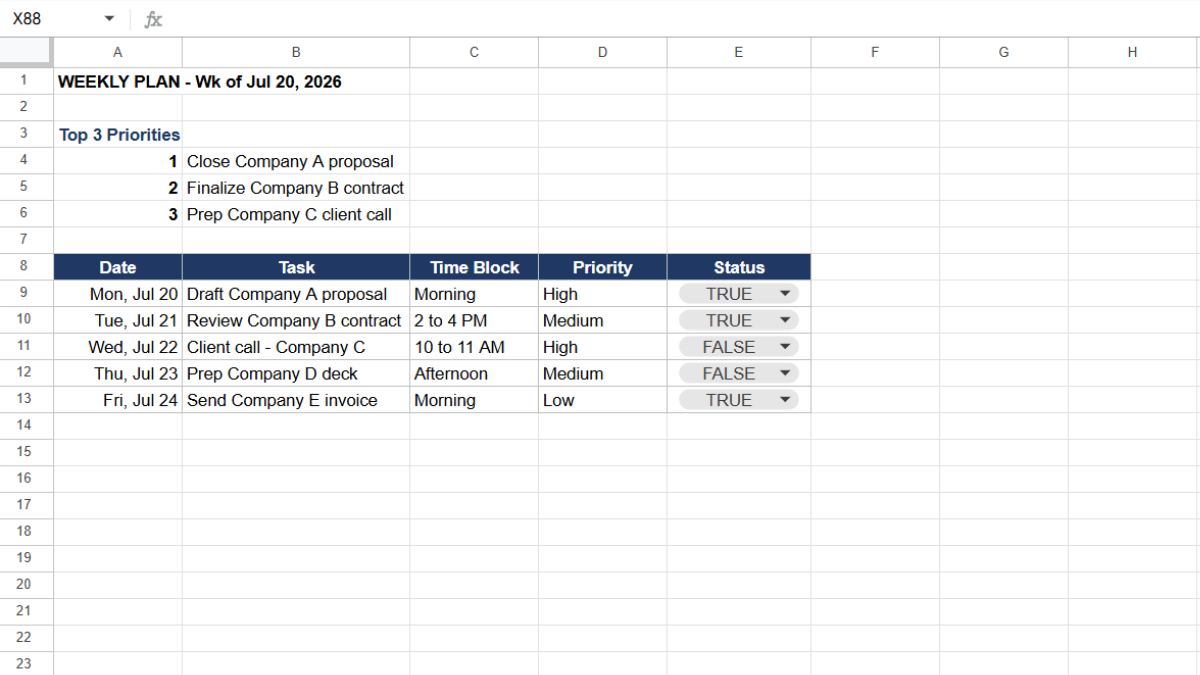
Open a new Google Sheet. Start with a top-of-week block for focus:
- This week’s top 3 priorities (three rows you fill in every Monday).
Then build the day-by-day table with these columns:
- Date (A)
- Task (B)
- Due Date (C), such as Morning or 2 to 4 PM
- Priority (D)
- Status (E)
Make Priority and Status dropdowns (Data → Data validation → Dropdown).
How do you dim completed tasks?
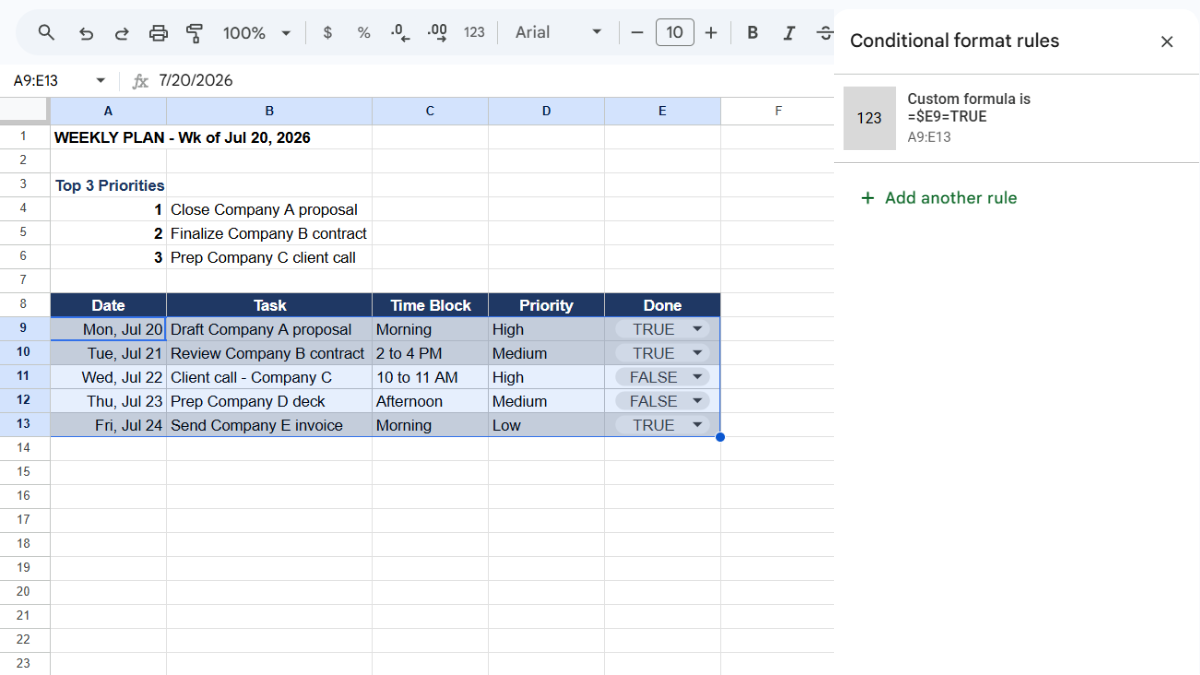
Ticking a box should give you visible progress. Conditional formatting handles it.
- Select your planner rows (for example, A2:E60).
- Go to Format → Conditional formatting.
- Choose Custom formula is and enter:
=$E2=TRUE
- Set a light gray fill and click Done.
Now finished items fade back, and what’s left stands out.
How do you highlight today?
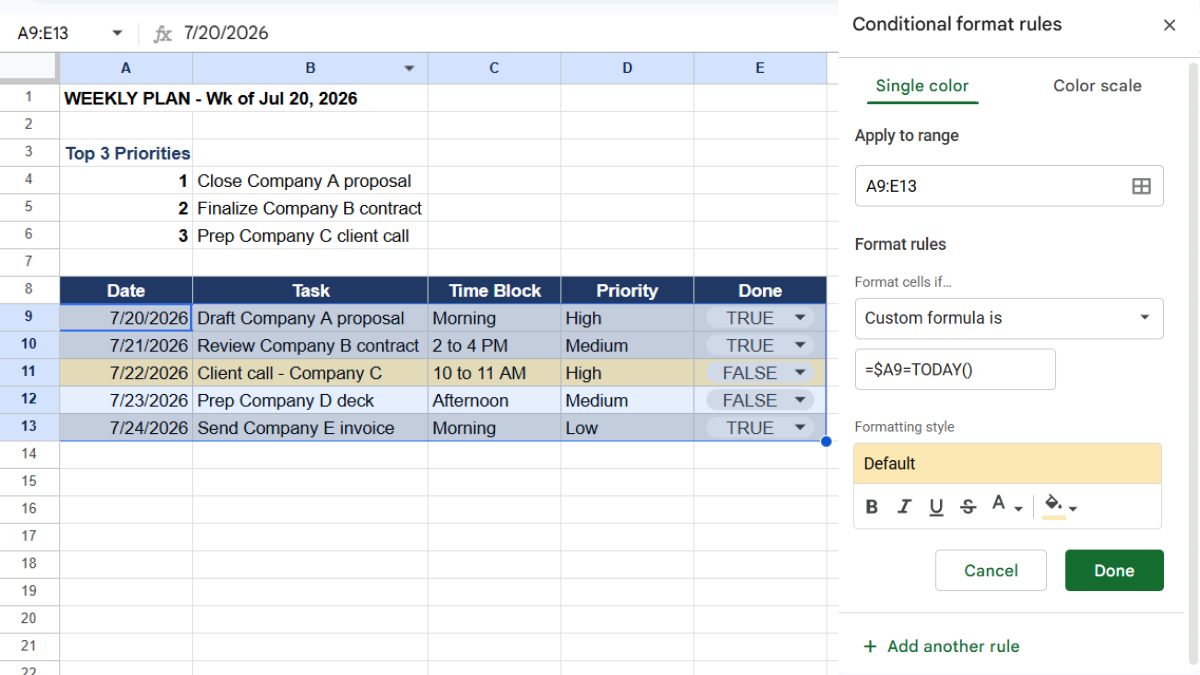
To make today jump out, add a conditional formatting rule on your Day column. If you list actual dates, use:
=$A2=TODAY()
Set a soft highlight color. The current day now stands out every time you open the planner.
How do you make it reusable each week?
You don’t want to rebuild this every Monday.
- Keep the structure and formulas, clear the tasks.
- Duplicate the tab (right-click the tab, Duplicate) for the new week, or use File → Make a copy for a fresh weekly file.
- Name each tab by the week, like “Wk of Jun 2.”
Where do the reference files live?
Here’s the small gap that trips up any planner. A plan item says “Review the Q3 proposal” or “Prep for the client call.” Useful. But the proposal is a file, and the call has an agenda, and neither is in your planner.
So every planned task that involves a document sends you off to find it, breaking exactly the focus a planner is supposed to protect.
This is where UpSheet fits in. UpSheet is a Google Sheets extension, built by The Conductor, that lets you drag and drop files straight onto a cell. You attach the agenda, the doc to review, or the meeting notes directly to the plan item’s row.
Drop the file on the row, and UpSheet stores it in a dedicated Google Drive folder for that sheet and marks the cell with a 📎 paperclip. When you sit down to that task, the file is right there.
In TABLE mode, each file stays tied to its plan item even as you reorder your week, so your references never get lost. Drag, Drop, Done.
Frequently asked questions
How do I make a weekly planner in Google Sheets?
Add a top-priorities block, then a day-by-day table with day, task, time block, priority, and a done checkbox. Use dropdowns for day and priority, and conditional formatting to dim completed items.
How do I add checkboxes to a planner in Google Sheets?
Select the cells in your Done column and go to Insert → Checkbox. Each becomes a tickable box you can pair with conditional formatting to gray out finished tasks.
How do I highlight the current day in Google Sheets?
If your planner uses real dates, add a conditional formatting rule with =$A2=TODAY() and a highlight color, so today’s row stands out automatically.
Can I attach files to my weekly plan in Google Sheets?
Yes, with UpSheet. Drag the agenda, document, or notes onto a plan item’s row, and it saves to the sheet’s Drive folder with a paperclip marker, so the reference you need is on the task itself.
Organize Your Work, Simplify Your Life
A weekly planner keeps your week in focus. UpSheet keeps the files each plan needs on the row itself, so you never break focus hunting for a document.
Start your 14-day free trial. It works inside the Google Sheet you already use, so there’s nothing new to learn. Pro is $9.99/month (or $79.99/year) when you’re ready.