How to Build a Bill Tracker in Google Sheets to Never Miss a Due Date

A missed payment is rarely about the money. It’s about forgetting, until a late fee or a service cutoff reminds you.
A bill tracker fixes that quietly. Build it once in Google Sheets, and it tells you what’s due, what’s overdue, and what’s coming, without you having to remember anything.
This guide builds a bill tracker Google Sheets keeps current for you, highlighting due and overdue bills automatically using today’s date.
Key Highlights
- A bill tracker in Google Sheets lists every recurring bill with its amount, due date, frequency, and status.
- Conditional formatting with TODAY() flags overdue bills in red and due-soon bills in yellow, on their own.
- A checkbox or status dropdown lets you mark bills paid as you go.
- The whole thing updates itself each day you open it, so it’s always current.
- A due date tells you when. The bill itself tells you how much and why. UpSheet is a Google Sheets extension by The Conductor that lets you attach the actual bill or statement to each row, so the document is right there when you pay.
What does a bill tracker Google Sheets setup need?
Open a new Google Sheet and create these columns:
- Bill name (A)
- Amount (B)
- Due date (C)
- Frequency (D), such as Monthly or Annual
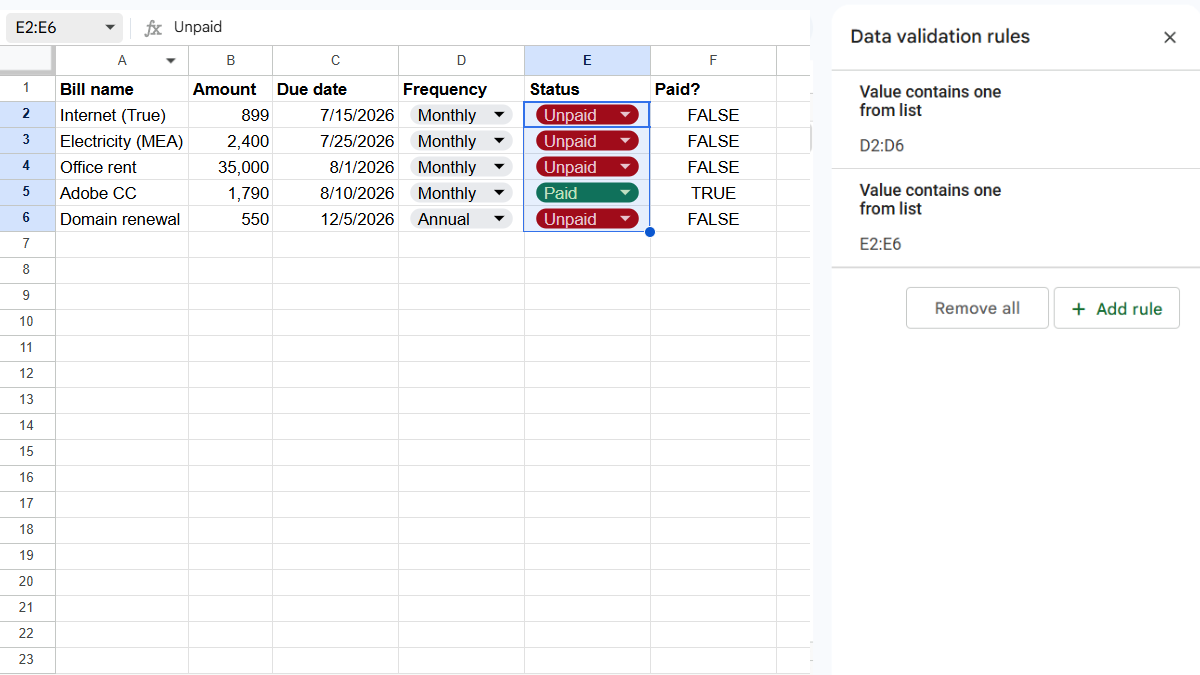
- Status (E), meaning Paid or Unpaid
Make Status a dropdown: select column E, go to Data → Data validation, add a Dropdown, and enter Paid and Unpaid. Do the same for Frequency if you like.
List each recurring bill as a row. That’s your input done.
How do you highlight overdue bills automatically?
This is the feature that saves you. You want any unpaid bill past its due date to turn red on its own.
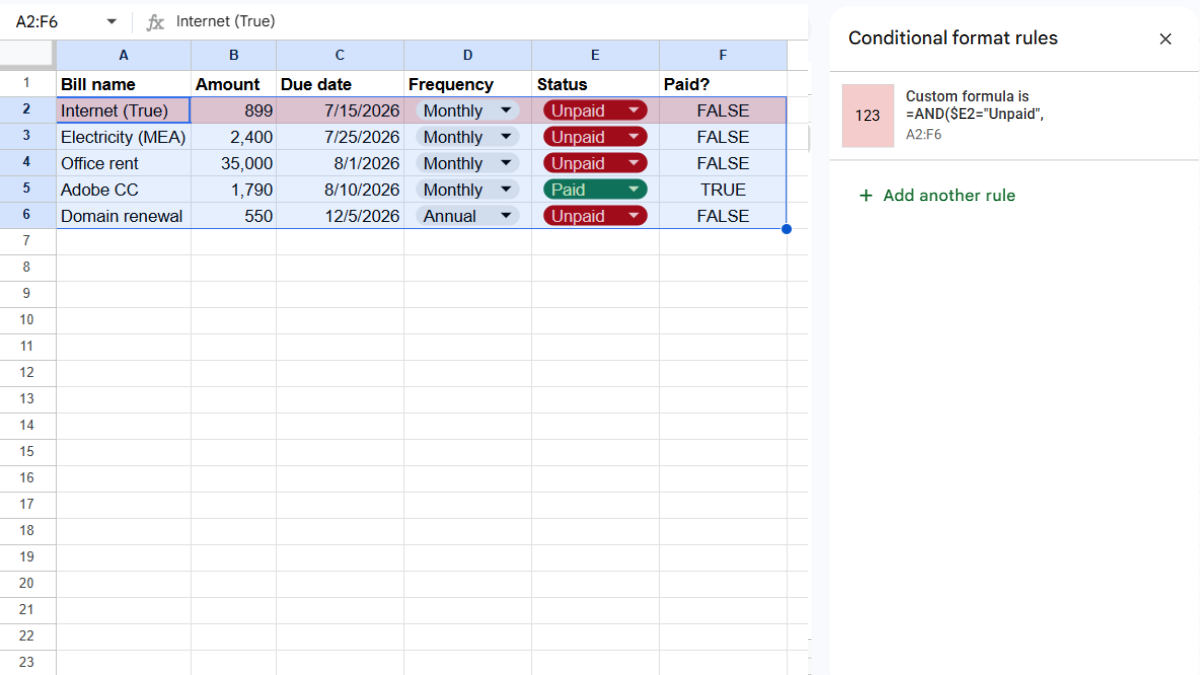
- Select your data rows (for example, A2:E50).
- Go to Format → Conditional formatting.
- Choose Custom formula is and enter:
=AND($E2="Unpaid", $C2<TODAY())
- Set a red fill and click Done.
TODAY() refreshes every day, so overdue bills flag themselves the moment they pass their date.
How do you flag bills that are due soon?
Add a second rule for a heads-up before the deadline. This one catches bills due within the next seven days.
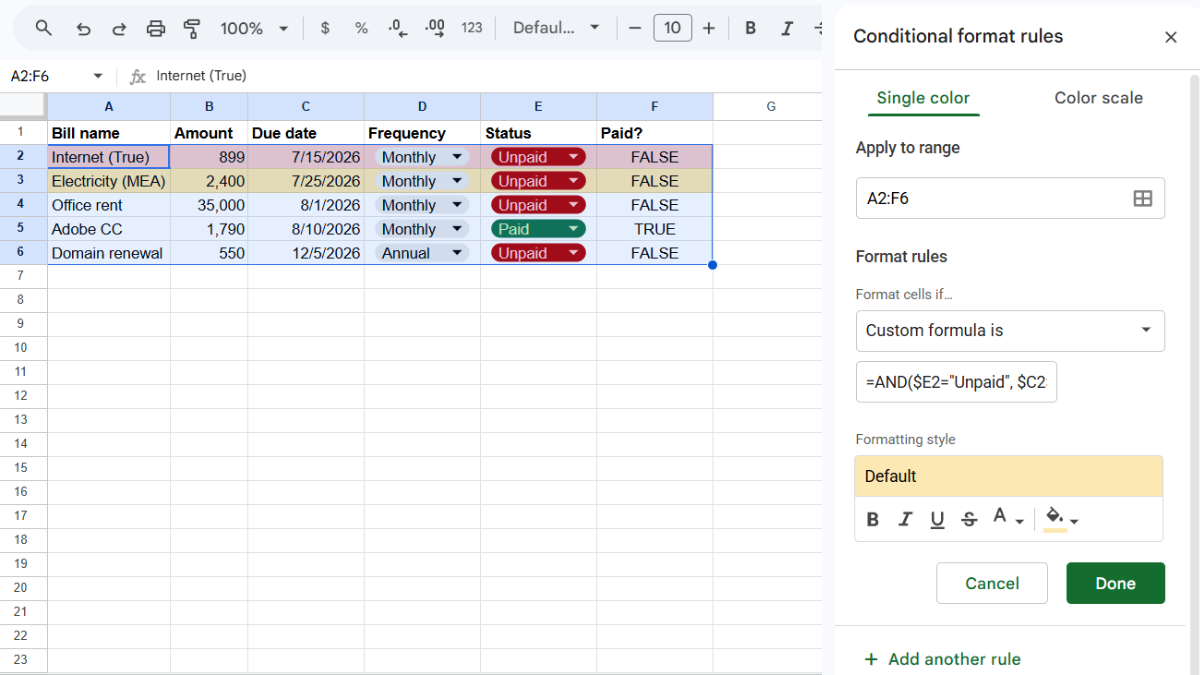
- With the same range selected, add another rule in Format → Conditional formatting.
- Choose Custom formula is and enter:
=AND($E2="Unpaid", $C2>=TODAY(), $C2-TODAY()<=7)
- Set a yellow or orange fill and click Done.
Now you get yellow for “pay this soon” and red for “you’re late,” a simple traffic-light system.
How do you mark bills as paid?
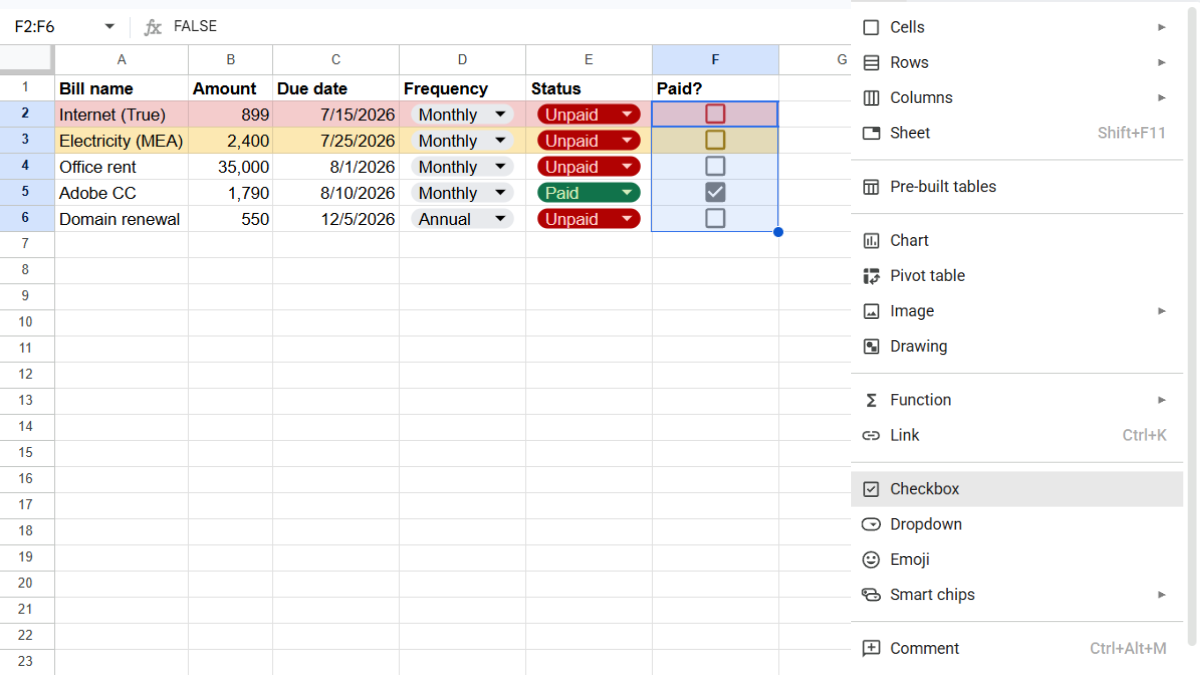
The quickest way is a checkbox. Add a column called Paid?, select its cells, and go to Insert → Checkbox. Tick it when a bill is handled.
You can also keep the Status dropdown and simply switch it to Paid, which is what the conditional formatting rules above read from. Either works. The dropdown pairs most cleanly with the automatic highlighting.
Where does the actual bill live?
Here’s the catch with a bill tracker. It tells you a payment is due, but the bill itself, the PDF with the account number, the breakdown, the payment link, is somewhere in your email.
So every payment becomes a small hunt: find the tracker, then go find the matching bill. The tracker knows when, but not the document.
This is where UpSheet fits in. UpSheet is a Google Sheets extension, built by The Conductor, that lets you drag and drop files straight onto a cell. You attach the bill or statement directly to its row.
Save the PDF from your email, drop it on the row, and UpSheet stores it in a dedicated Google Drive folder for that sheet and marks the cell with a 📎 paperclip. When it’s time to pay, you open the bill from the same row that reminded you.
In TABLE mode, each attached bill stays tied to its row even after you sort by due date, so the right document is always in the right place. Drag, Drop, Done.
Frequently asked questions
How do I create a bill tracker in Google Sheets?
List each bill with its amount, due date, frequency, and status, then use conditional formatting with TODAY() to highlight overdue and due-soon bills automatically. Mark bills paid with a checkbox or status dropdown.
How do I highlight overdue dates in Google Sheets?
Use conditional formatting with a custom formula such as =AND($E2="Unpaid", $C2<TODAY()), then set a red fill. Because TODAY() updates daily, overdue rows flag themselves automatically.
How do I get reminders for bills in Google Sheets?
Use a due-soon conditional formatting rule like =AND($E2="Unpaid", $C2>=TODAY(), $C2-TODAY()<=7) with a yellow fill. Bills due within a week turn yellow, giving you a visual reminder each time you open the sheet.
Can I attach the actual bill to each row in Google Sheets?
Yes, with UpSheet. Drag the bill or statement PDF onto its row, and it saves to the sheet’s Drive folder with a paperclip marker, so the document you need to pay is attached to the reminder itself.
Organize Your Work, Simplify Your Life
A bill tracker remembers your due dates so you don’t have to. UpSheet keeps the actual bills attached to those dates, so paying is a click, not a search.
Start your 14-day free trial. It works inside the Google Sheet you already use, so there’s nothing new to learn. Pro is $9.99/month (or $79.99/year) when you’re ready.